
세콤, 캡스, KT텔레캅 연동으로 손쉽게 출퇴근 하세요!


An approval report is a report that, once submitted, is approved or rejected step by step by approvers in a set order.
Before creating a template, take a moment to review the key terms used in approval reports.
Approval line
The approval steps and CC members a report must go through. It is set in the template and can have 1 to 7 approval steps.
Approver
A member who approves or rejects the report at each step of the approval line.
CC member
A member added to the approval line who can view the report and follow its approval progress. CC members cannot approve or reject reports.
Recipient
A member who has been given permission to view an individual report. Members are automatically added as recipients when @mentioned in a comment, and recipients are managed separately from the approval line.
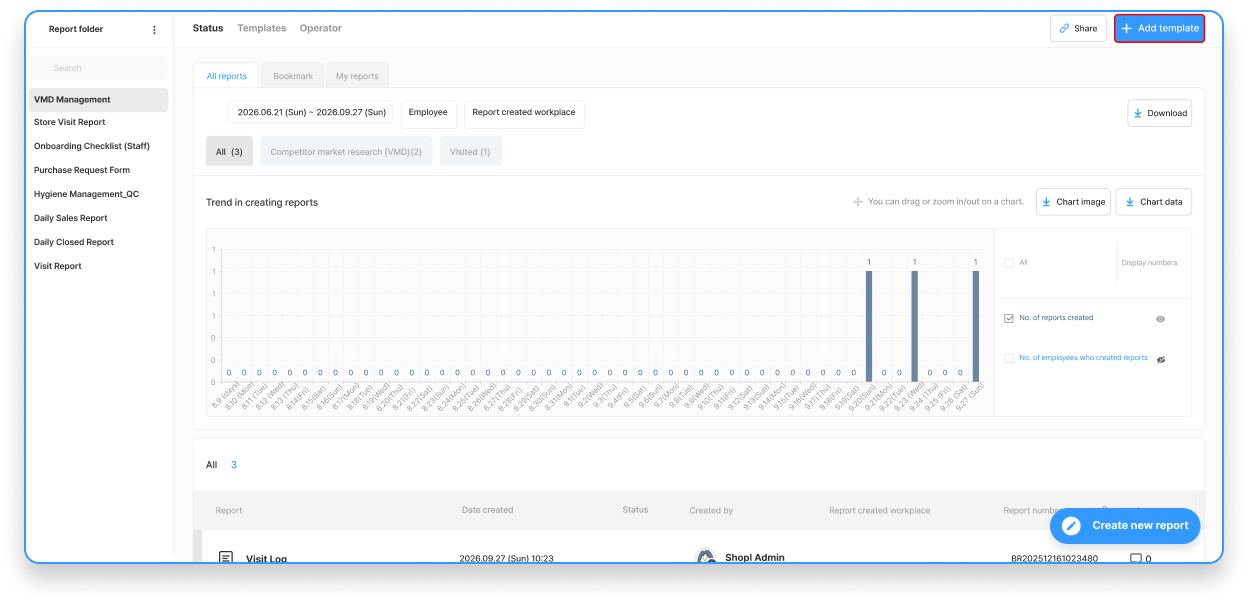
Basic info

Template name (Required)
Enter a name for the template.
Writing guide (Optional)
Enter guidance that members can refer to when writing a report.
Report creation rules

Report creation basis
Choose whether reports are created by member or by workplace.
Authors
Set which members will write reports using this template.
You can choose from all members in the company, specific groups and job titles/positions, or specific members.
Required submission date
If a report needs to be written on a recurring basis, set a required submission date.
Submission rules
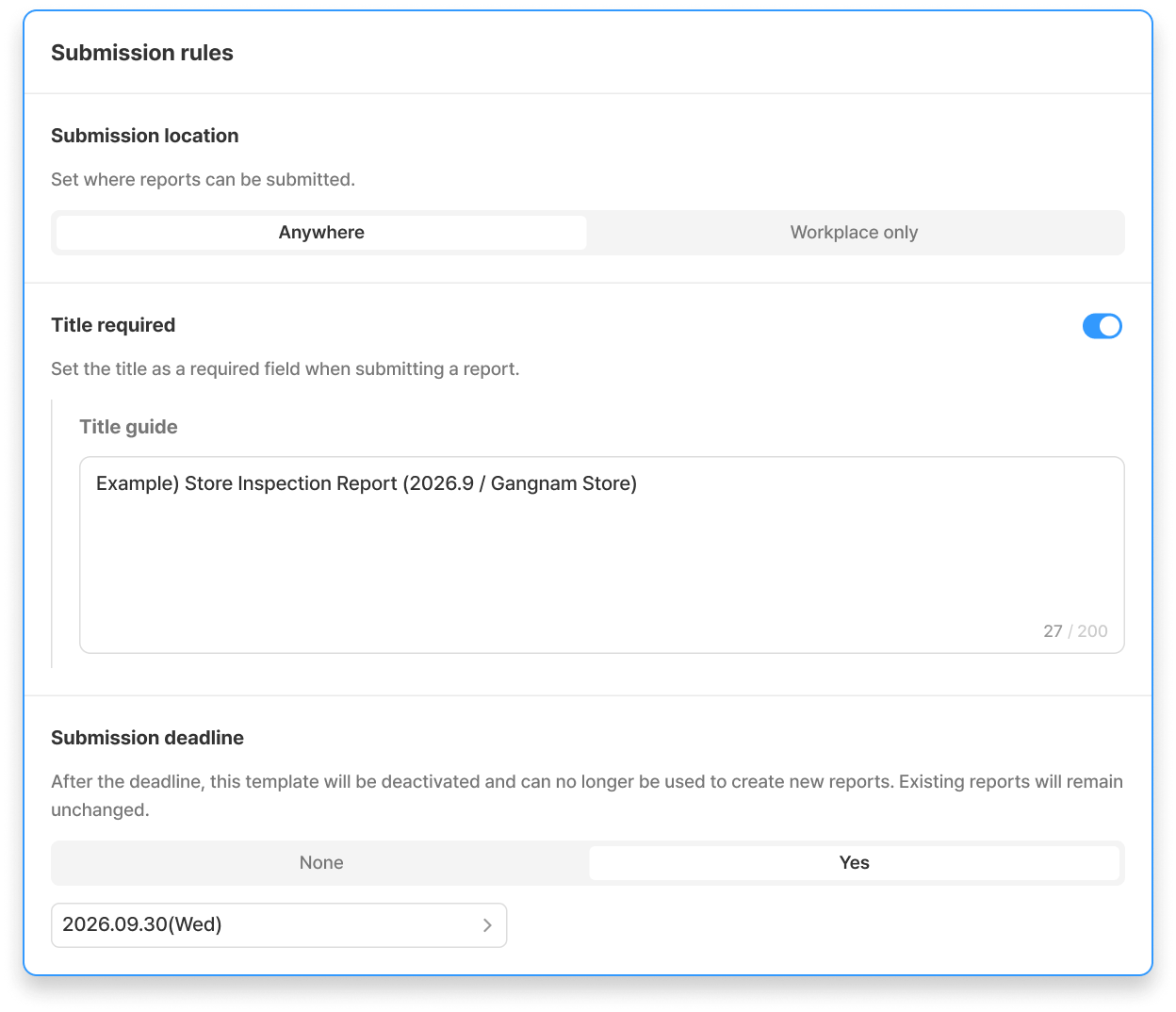
Submission location
Set where reports can be submitted from.
Title required
Require a title to be entered when writing a report.
Submission deadline
Once the submission deadline passes, the template is automatically deactivated and can no longer be used to write reports.
Approval line settings

The approval line consists of the approval steps a report must go through and the CC members who follow its approval progress.
You can also choose whether authors are allowed to edit the approval line. For details, see 4. Setting Up the Approval Line below.
Additional settings

Set the statuses, colors, and icons used for reports.
Use sections to organize report fields, and enter the type, title, and description for each question.
Add the items you need using the [Question], [Title], and [Section] buttons at the bottom of the screen.
You can set whether each question is [Must answer], drag and drop to reorder questions, and copy or add questions.
💡 You can choose from 17 question types, including Single text, Multiple choice, Checklist, Member, Signature, Date/Period, and Photo.
Save draft
Fill in the template in advance, save it as a draft, and activate it later when you're ready to use it.
Load existing template
Load the settings and report fields of a template you have used before, then edit them as needed.
If the new template is similar to a previous one, use this feature to create it quickly.
⚠️ Loading a template overwrites everything you have entered so far with the content of the loaded template.
Preview
Before adding the template, preview the screen members will see when writing a report.
In the template, go to [General settings] > Approval line settings to set the approval steps, CC members, and whether authors can edit the approval line.
Set the approval steps a report must go through. You can add up to 7 steps, and at least 1 step is required.

Approval completion condition
When a step has multiple approvers, set what it takes for the report to move on to the next step.
Approvers
Specify the members who will approve or reject the report at that step. You can combine multiple options.
Approval label
Choose the name of the approval button shown to approvers: [Approve], [Agree], or [Cooperate].
Approval request notification
Approvers are notified when it's their step's turn.
💡 If there are two or more steps, you can drag and drop them to change their order.
When approvers are determined
Approvers set as Specific members are fixed when the template is saved.
For the other options (Author's leader and admins, Everyone in the author's group, and Specific groups and job titles/positions), approvers are determined when the report reaches that step.
When the author is also an approver
Authors are automatically excluded from the approvers of reports they submit.
Specify the members who will follow the report and its approval progress. CC members are notified when the report is submitted and when the final approval decision is made.
💡 CC members are determined when the report is submitted, based on who meets the conditions at that time, and are saved to the report. Changing the CC settings in the template later does not affect reports that have already been submitted.
⚠️ CC members set in the template cannot be removed from individual reports by anyone. To change CC members, edit the template. The changes apply to reports submitted after the edit.
Choose whether authors are allowed to edit the approval line.
💡 Admins and Leaders assigned as report box operators can always edit the approval line, regardless of this setting. Turn this ON if you need to cover for absent approvers or proxy approvals.
⚠️ Changing this setting takes effect immediately, even for reports already in the approval process.
You can edit not only a report template's basic and additional information but also its approval line and report fields.

Even if you edit a template, reports already in the approval process keep the report fields and approval line they had when they were submitted.
However, some changes apply to reports in progress right away, so check them before editing.
Changes applied immediately to reports in progress
Changes applied only to reports submitted afterward
Deactivating a template
💡 To change the approval line of a report that has already been submitted, edit the approval line in that report instead of in the template.
You can delete templates you no longer use.
⚠️ Deleting a template also deletes all reports written with it, including reports still in the approval process. If you need to keep existing reports, deactivate the template instead of deleting it.


