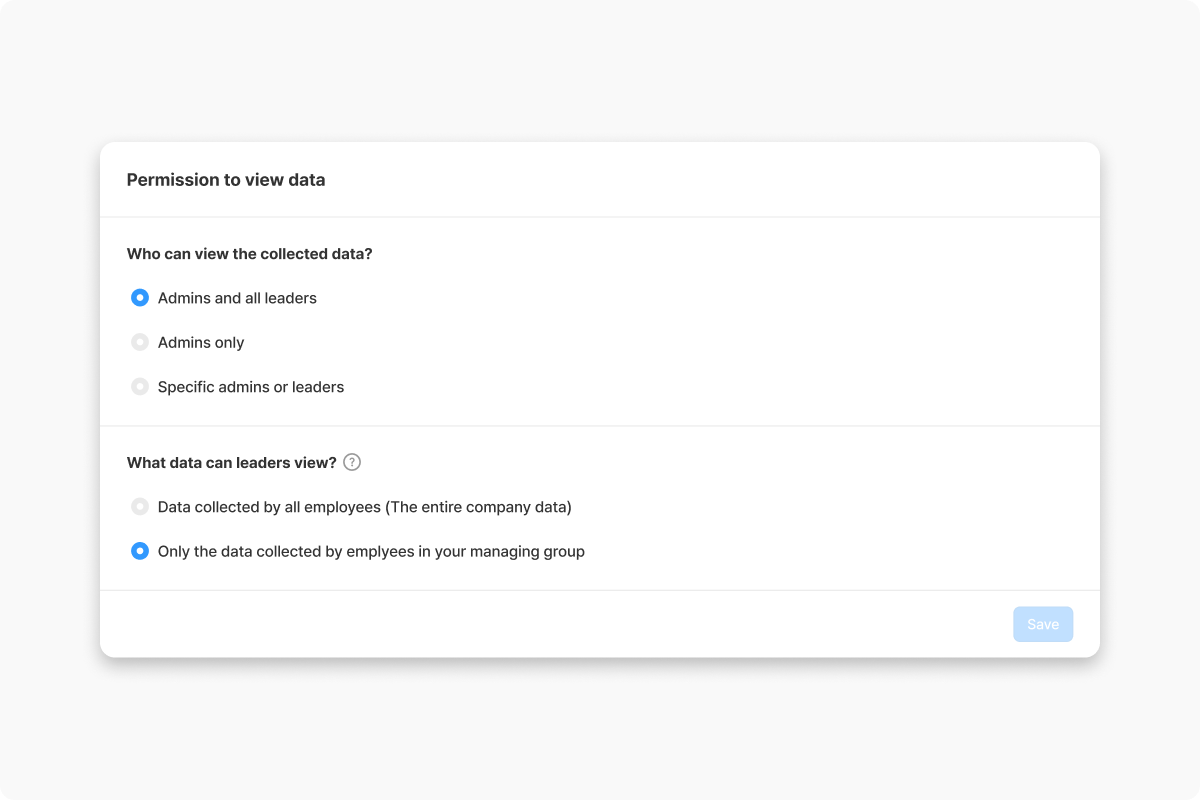
If Leader is included in the viewing permission, you can also configure the scope of data that leaders can view.
Admins can view data collected by all employees across the company.
For Leaders, you can choose whether they can view:
Data collected by all employees (The entire company data), or
Only the data collected by employees in your managing group.
3. Configure Date range settings for data uploads.
Set the date range for employees to upload data.
Employees can upload data by selecting a date within the configured range in the calendar.
This setting only applies when employees collect data through the App. Admins and Leaders can upload data for any date through the Dashboard.
4. (Optional) Configure a Collection Guide.
You can create a guide that will be displayed in the App while employees collect data.
Add instructions or reference information that employees should review when collecting data.
Configuring the Price Collection Scope (Admin)
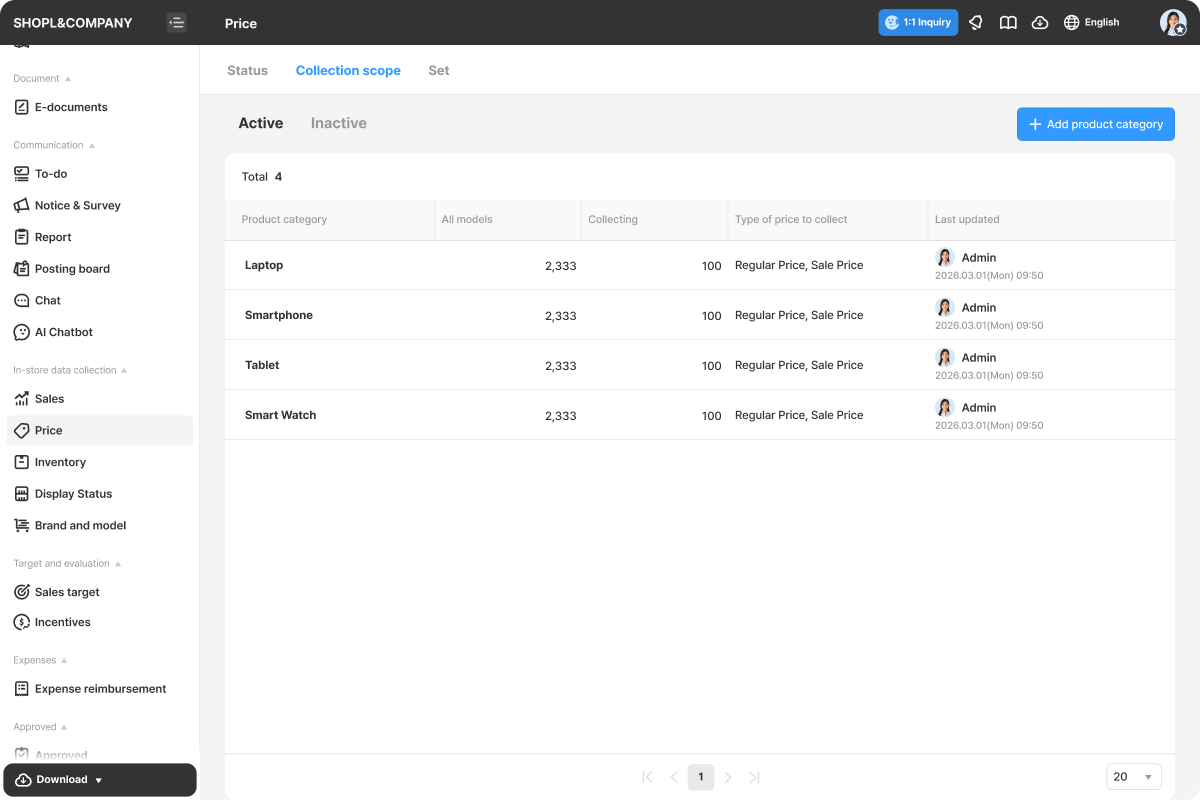
1. Go to Dashboard > Price > Collection Scope.
The [Active] page displays the list of Product Categories currently collecting Price information. When a Product Category is added, it is automatically classified as Active.
The [Inactive] page displays the list of Product Categories that are not currently collecting Price information. Inactive Product Categories cannot collect data and are not displayed to employees in the App.
2. On the [Active] page, select a Product Category to open its details page.
3. Under Collection Data, click the [Edit] button.
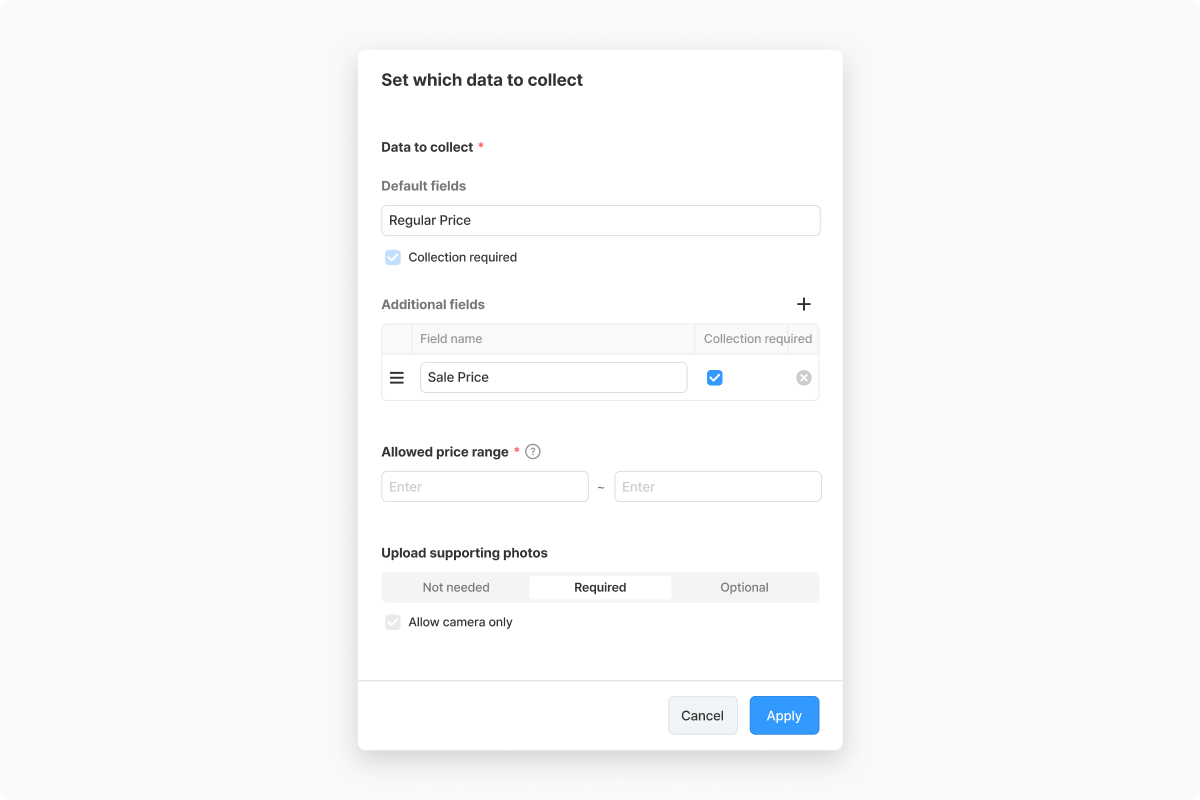
4. Configure the collection data for the selected Product Category. You can define the data to collect, the allowed price range, and proof photo upload settings.
If additional price information is required beyond the default price value, you can add additional data fields. For each field, you can configure whether it is required during data collection.
You can set the allowed price range for a product.
You can configure whether proof photo uploads are required when collecting data. If set to [Required] or [Optional], you can also choose whether only photo capture is allowed.
5. Under Collection Conditions, click the [Edit] button.
6. Configure the Collection Conditions for the selected Product Category. You can configure Required date to collect, Workplaces for data collection, Members to collect data, and Allowed collection locations.
Under Required date to collect, you can define when price information must be collected for this Product Category.
When a collection schedule is configured, members must repeatedly collect data according to the selected schedule.
For all options except None (Collect at any time), a price collection task will be displayed in App Employee Mode > Today's Tasks according to the configured schedule.
Every day: Data must be collected every day.
Every week: Data must be collected within the selected day(s) of each week. If no day is selected, the entire week is considered the collection period.
Every month: Data must be collected within the selected date(s) of each month. If no date is selected, the entire month is considered the collection period.
None (Collect at any time): Data can be collected at any time. Members cannot view date-based collection tasks in the App, and no notifications will be displayed if data is not collected.
Under Workplaces for data collection, collection tasks are assigned to members of the selected workplaces and displayed in App Employee Mode > Today's Tasks.
Under Members to collect data, collection tasks are assigned to the selected members.
Under Allowed collection locations, you can control where employees can collect data through the App.
Anywhere: Employees can collect data regardless of location.
Workplace only: Employees can collect data only at workplaces registered in the company.
Only at the workplace where punched in: Employees can collect data only at the workplace where they have completed check-in.
7. Click the [Add/Edit] button to configure the list of products from the selected Brand for which price information will be collected.


.png)

.png)
.png)