For leave types that are granted in advance, leave must be assigned individually to each employee. Before assigning leave, you must first register the leave type you want to grant. If you haven’t registered a leave type yet, please refer to the Registering Leave Types guide. ▸ Create leave types >
For leave types that are granted in advance (e.g., Annual leave), you can grant available leave days to be used as leave to each employee.
1. Grant leave (Accrued leave)
Select the leave type that you wish to grant leave days.
Click [Grant days for leave]
Enter all the necessary information for each section, and click [Save] on the bottom of the page.
Section 1 : Enter a title
Enter a title that makes it easy to identify the granted record later(e.g., 2026 Annual Leave).
Section 2 : Granted to
Choose who will receive the granted leave:
All members who can take a leave:
→ All employees who were set as eligible users of this leave type will be granted leave.
Specific members among those who can take a leave:
→ Select only certain employees among those eligible for this leave type.
Section 3 : How to grant
Choose how leave days will be granted
1) Grant the same for all members
Grant the same number of leave days to all selected employees.
In this method, you must set:
Days granted (Day / Hour / Minute)
Available period (Start date – End date)
Carryover permissions
Days granted / Available period
Enter the number of days to grant.
Set the period during which the leave can be used.
⚠️ NOTE Only leave types created after Nov 4, 2025 can be granted in hour/minute units.
Allow carryover?
If the employee does not use all leave within the available period, you can allow carryover to a later date.
Carryover expiration options:
X months after the end month
X days after the end date
Specific month in the next yea
Specific date
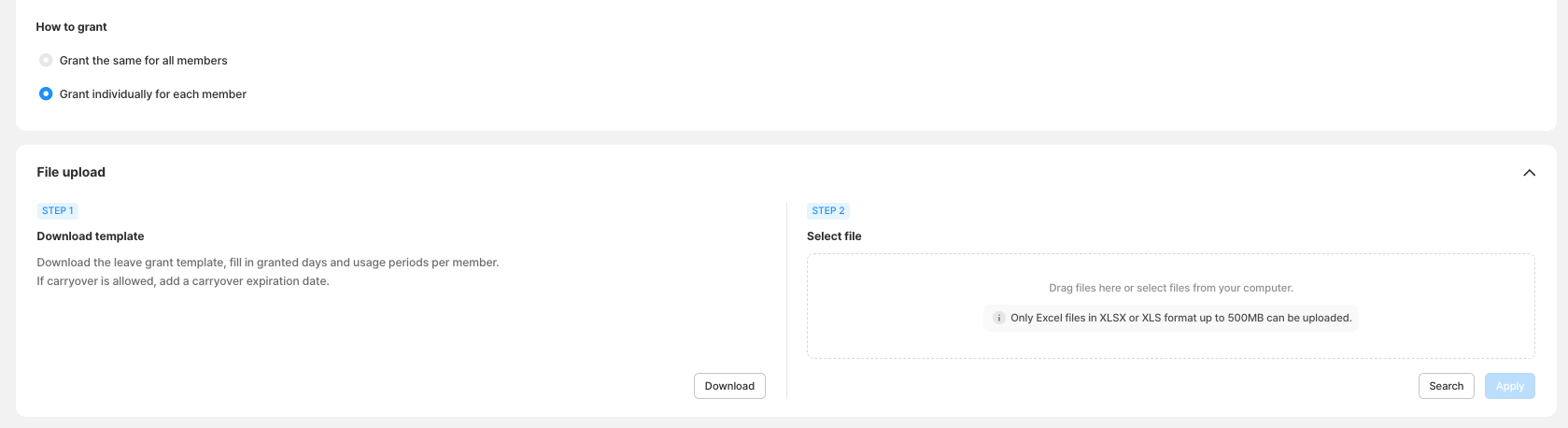
2) Grant individually for each member
Use this when each employee receives a different number of leave days.
Select Grant individually for each member.
Download the Excel template (based on the selected unit in Step 1).
Enter for each employee:
Days granted
Available period
Carryover expiration
Upload the completed Excel file in STEP 2 – Upload file and click Apply.