Review the existing leave types. Some default leave types may already be provided depending on your workspace settings.
Click [+ new type].
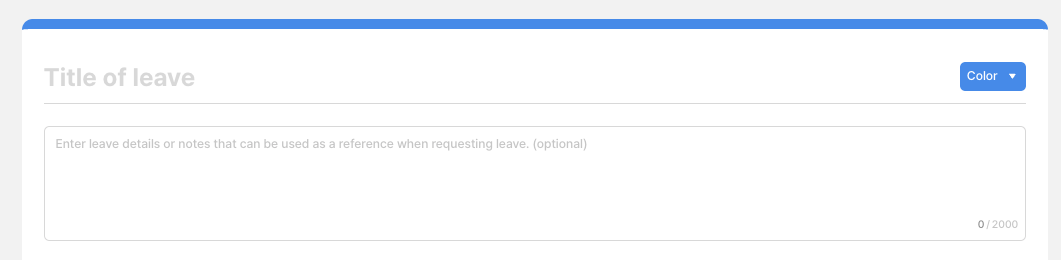
2. Title, Description, and Theme Color
Title of leave: Enter the name of the leave type used in your company.
Description: Add leave details or notes employees will see when requesting leave in the app.
Theme color: Assign a color to visually distinguish this leave type.
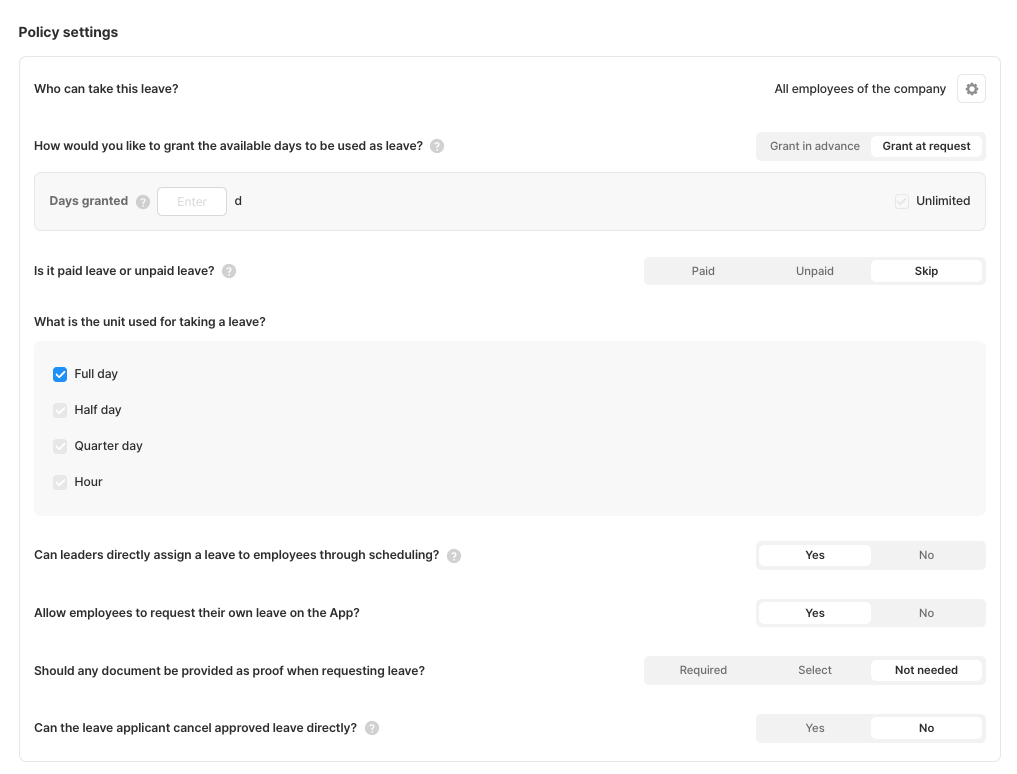
3. Policy Settings
Who can take this leave?
Choose which employees are eligible to use this leave.
All employees of the company
Specific group and job title
Specific customized properties (e.g., gender = female)
How would you like to grant the available days to be used as leave?
Select how employees receive leave days.
Grant at request: Leave days are given when employees request leave, up to a defined limit.
Grant in advance: Leave days are assigned beforehand, and employees use them from the remaining balance.
If using Grant in advance, you can:
Define the total number of days granted.
Allow unlimited days.
Decide whether to allow employees to use days beyond the granted amount (overuse).
Is it paid leave or unpaid leave?
Select whether this leave type is paid, unpaid, or unspecified.
What is the unit used for taking a leave?
Select the available time units:
Full day
Half day
Quarter day
Hour
Can leaders directly assign a leave to employees through scheduling?
Yes: Leaders can assign this leave type when editing schedules.
No: Leaders can only approve; employees must request the leave themselves.
Allow employees to request their own leave on the App?
Yes: Employees can request leave in the app.
No: Only leaders assign leave through scheduling.
Should any document be provided as proof when requesting leave?
Required
Select (optional)
Not needed
Can the leave applicant cancel approved leave directly?
Yes: The employee can cancel approved leave based on date rules (past 1–365 days, today, or future dates). A cancellation reason is required.
No: Only the final approver or administrator can cancel.
4. Approval Steps Settings
You can set up to three approval steps.
Step 1 is mandatory.
Each step can be assigned to:
Group leader
Parent group leader
Specific leader
Administrators can approve or reject any leave request even if not designated as approvers.
5. Instructions
When employees request leave in the app, the instructions you enter here appear at the top of the memo field. Use this to guide employees on required details or formats.