Admin

Managing Standard Report Templates

2016-11-12
NOTE
Only Admins and Leaders assigned as report box operators can add, edit, and delete report templates, and only from the PC dashboard.

1. Creating a Standard Report Template

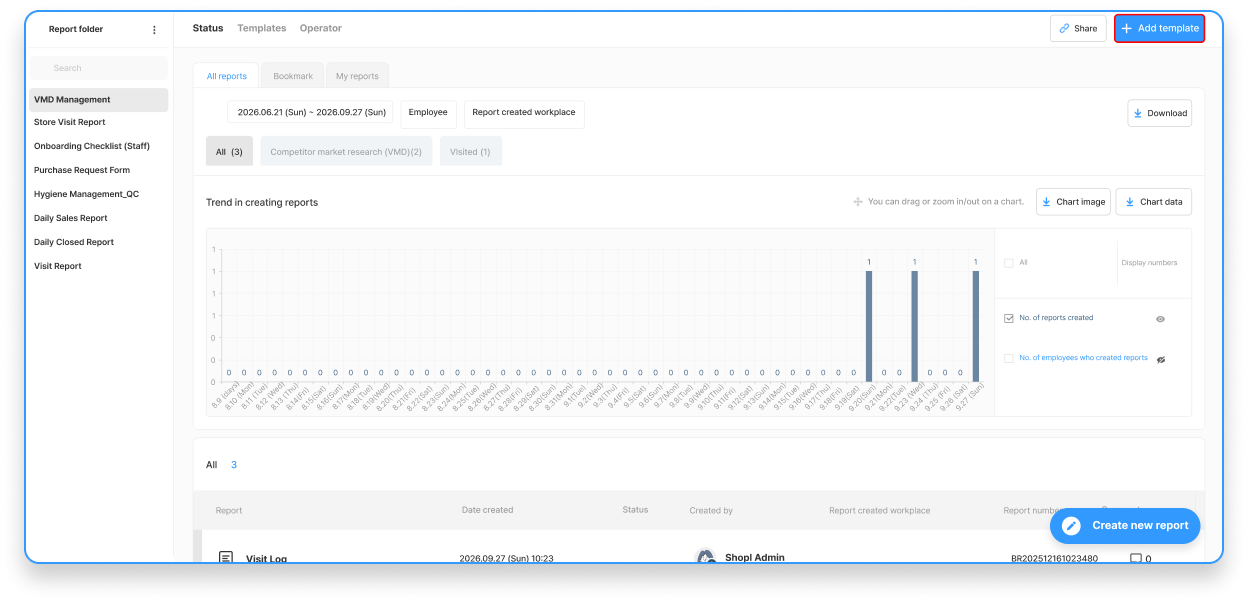
  1. Go to Dashboard > [Report].
  2. Select the standard report box where you want to add a template.
  3. Click the [Add template] button.

2. Entering Template Information

General settings

Basic info

Template name (Required)
Enter a name for the template.

  • You can enter up to 50 characters. The name must be different from other templates in the same report box.

‍

Writing guide (Optional)
Enter guidance that members can refer to when writing a report.

  • You can enter up to 500 characters.
  • Use the editing tools to format the guide however you like.

‍

Report creation rules

Report creation basis
Choose whether reports are created by member or by workplace.

  • Create reports by member: Select this when each member needs to write their own report.
  • Create reports by workplace: Select this when reports are written for each workplace. You can choose all workplaces in the company or specific workplaces.

‍

Created by
Set which members will write reports using this template.
You can choose from all members in the company, specific groups and job titles/positions, or specific members.

‍

Required submission date
If a report needs to be written on a recurring basis, set a required submission date.

  • You can choose a recurrence of daily, specific days of the week, or specific dates.
  • Once a required submission date is set, the report appears on the [Today's Task] screen of the employees set as authors.
  • If an employee clocks out without writing that day's report, a warning message can be shown to remind them to complete it.

‍

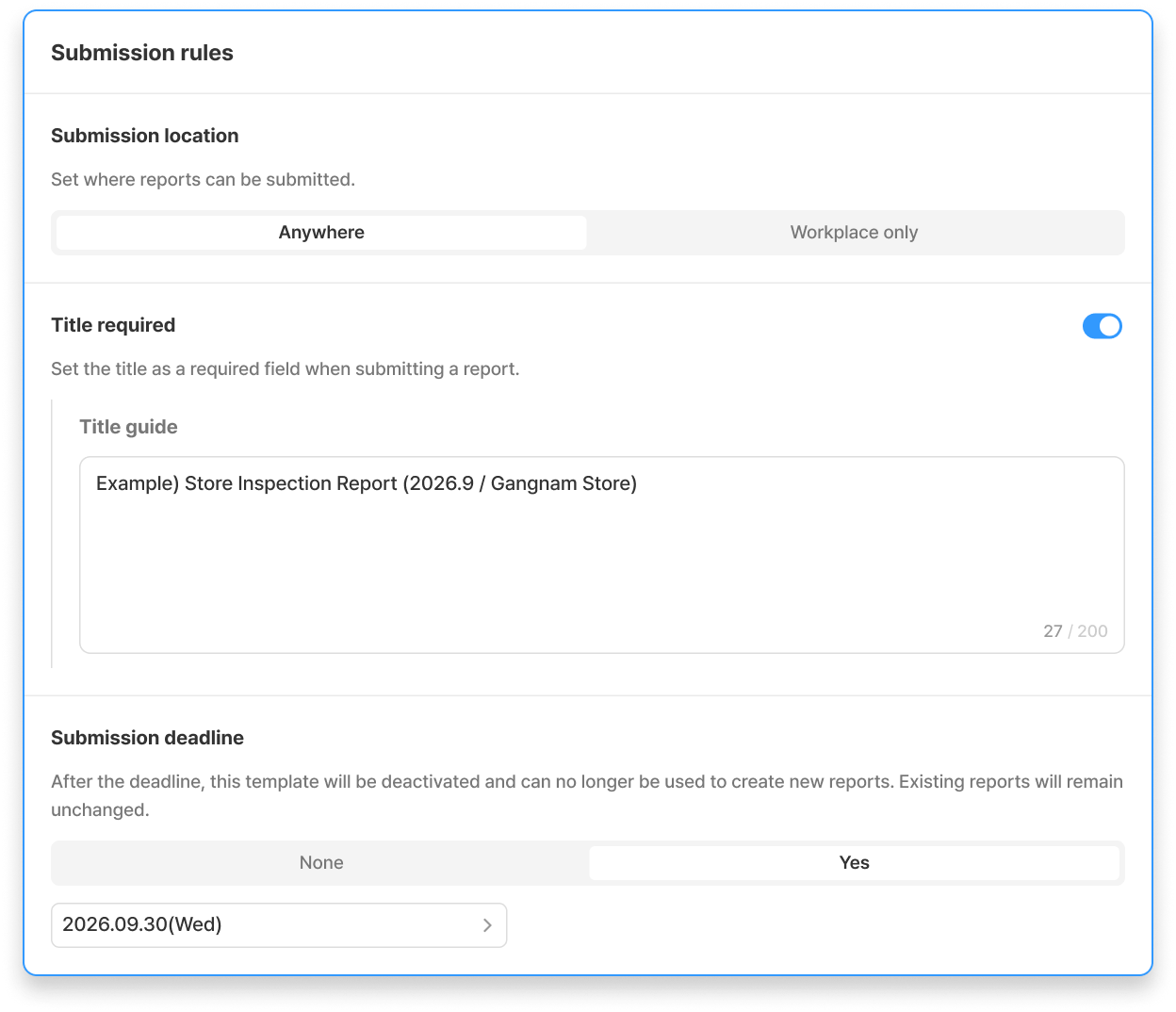
Submission rules

Submission location
Set where reports can be submitted from.

  • Anywhere: Reports can be submitted from any location, regardless of the assigned workplace.
  • Workplace only: Reports can only be submitted from registered workplaces.

‍

Title required
Require a title to be entered when writing a report.

‍

Submission deadline
Once the submission deadline passes, the template is automatically deactivated and can no longer be used to write reports.

  • Reports that have already been written will not be deleted.

‍

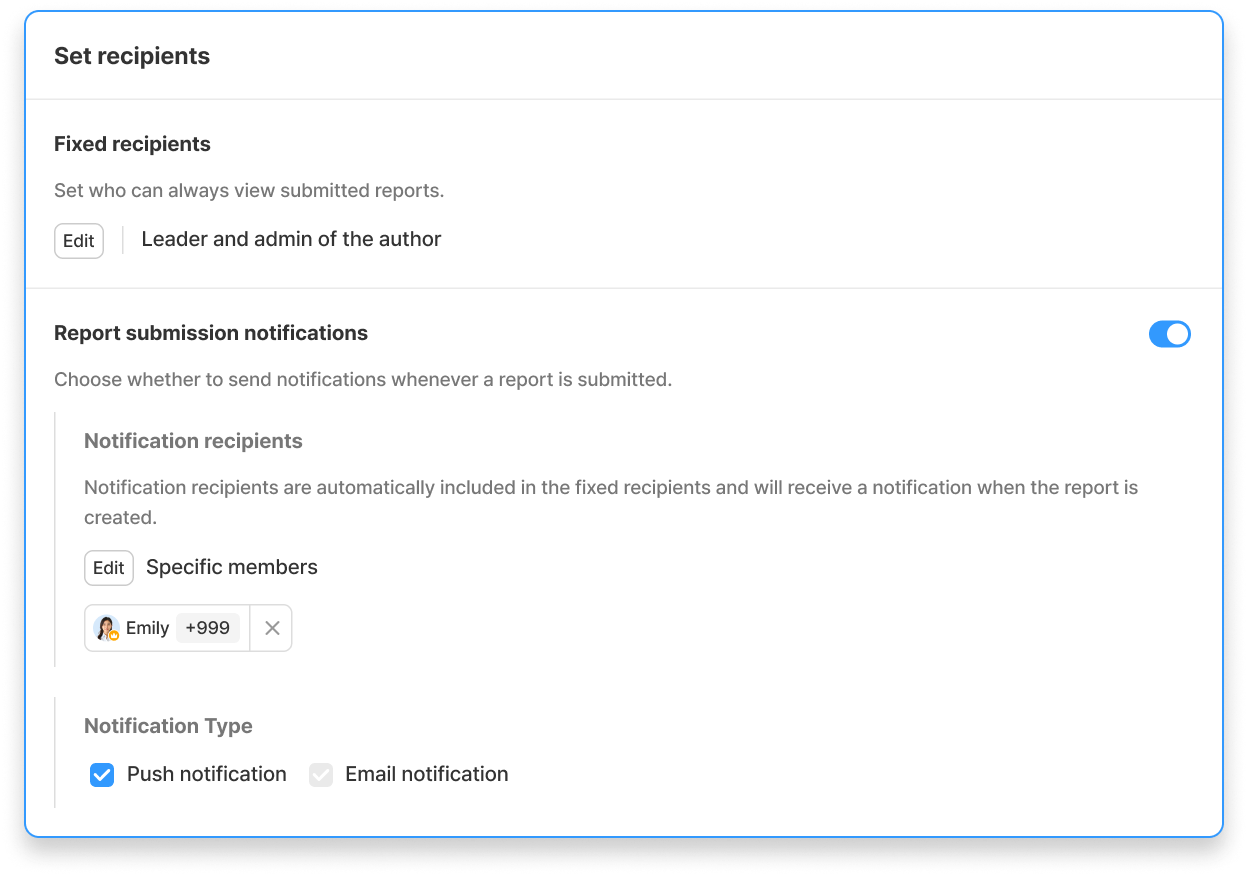
Set recipients

Fixed recipients
Set who can view submitted reports.

  • Fixed recipients can also add, edit, and delete report statuses.

‍

Report submission notifications · Notification recipients
Choose whether to send a notification each time a report is submitted, and who should receive it.
App push notifications are sent by default, and you can also enable email notifications.

  • Members set as notification recipients are automatically included as fixed recipients.

‍

Additional settings

Set the statuses, colors, and icons used for reports.

  • Statuses are used to categorize submitted reports by purpose. You can create up to 10 statuses.

‍

Report Item

Use sections to organize report fields, and enter the type, title, and description for each question.
Add the items you need using the [Question], [Title], and [Section] buttons at the bottom of the screen.

  • Question: Select a field type and enter the question's title and description.
  • Title: Enter a title and description for the item, and attach photos or documents if needed.
  • Section: Enter a section name and description to divide the report fields.

You can set whether each question is [Must answer], drag and drop to reorder questions, and copy or add questions.

💡 You can choose from 17 question types, including Single text, Multiple choice, Checklist, Member, Signature, Date/Period, and Photo.

‍

Convenience features

Save draft
Fill in the template in advance, save it as a draft, and activate it later when you're ready to use it.

  • You can save a draft even if not all required fields are filled in.

‍

Load existing template
Load the settings and report fields of a template you've used before, then edit them as needed.
If the new template is similar to a previous one, use this feature to create it quickly.

  • Admins can load templates from all report boxes. Leaders assigned as report box operators can load templates only from the report boxes they operate.
  • When you load an approval report template, everything except the approval line is loaded.

⚠️ Loading a template will replace everything you've entered so far with the loaded template's content.

‍

Preview
Before adding the template, preview the screen members will see when writing a report.

‍

3. Editing a Standard Report Template

You can edit not only a report template's basic and additional information but also its report fields.

  1. Go to Dashboard > Report and select the standard report box that contains the template you want to edit.
  2. In the [Template] tab, select the template you want to edit to open its details.
  3. Click the More [⁝] button in the upper-right corner > [Edit].
  4. Add or delete items or change the details as needed, then click the [Save] button.

💡 Editing a template does not change or delete reports that have already been written. The updated template is used for reports written after you save your changes.

‍

4. Deleting a Standard Report Template

You can delete templates you no longer use.

  1. Go to Dashboard > Report and select the standard report box that contains the template you want to delete.
  2. In the [Template] tab, select the template you want to delete.
  3. Click the [Delete] button at the bottom of the screen.

⚠️ Deleting a template also deletes all existing reports written with it. If you need to keep those reports, deactivate the template instead of deleting it.

‍

1:1 Chat
Click floating chat icon for 1:1 chat support.
Zoom Support
Select available time here.
Email
If you have specific inquiries, contact us at support@shoplworks.com.