NOTE The workplace details page is only accessible to Admins and Leaders with 'Workplace inquiry permission' and 'Work info inquiry permission' configured. If you need access, please set up the Permission setting first on the [Workplace > Settings] page.
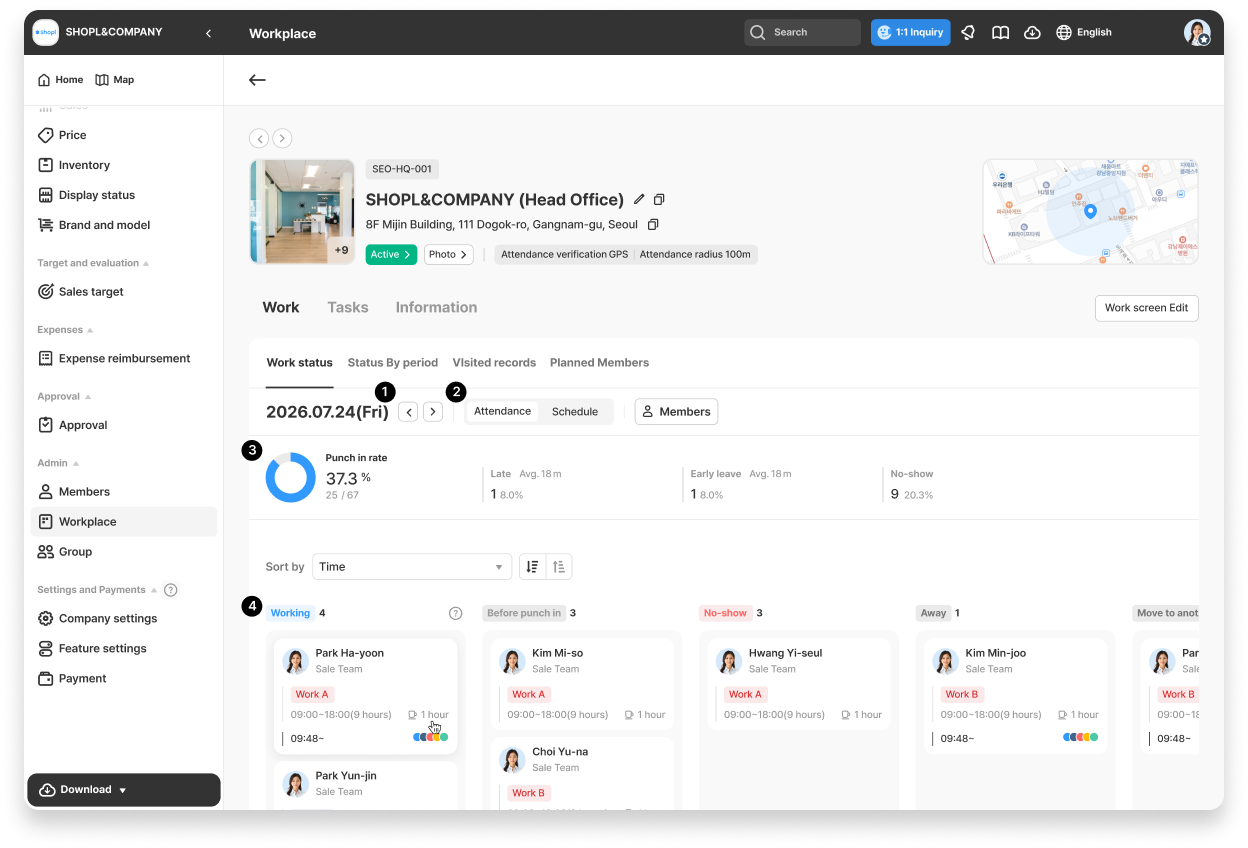
If you want to view the Attendance and Schedule status of a specific workplace in detail by date, try the Work status tab on the workplace details page.
You can see at a glance, in card format, all Members who are Planned or actually Working at this workplace Today.
1. Navigating to the Work Status Tab
You can access the workplace details page in two ways:
1. Go to the Workplace Menu > select a workplace from the workplace Status table > click the [Work] tab at the top > select the Work status sub-tab.
2. Click the Workplace name in the bottom table or popup of the By workplace Attendance page.
Use the arrow buttons to move one day at a time, or click the date Text to open a Calendar and directly select the date you want.
2. Switching Between Attendance / Schedule View
Attendance View: Groups Members by their actual Attendance Status. (Working · Before punch in · No-show · Away · Move to another workplace · Punch out)
Schedule View: Groups Members by their Assigned Schedule type. (By work Schedule template · Leave · Off · Education · Others · No schedule)
3. Checking Statistics
The Statistics displayed at the top change depending on the View you select.
Attendance View: Punch in rate, Late, Early leave, No-show
Schedule View: Punch in rate, Working, Leave, Off
4. Viewing Members in the Card List
Members are displayed in card format, grouped by column (work Status or Schedule type).
Each card shows the Profile, job title · position, Schedule information, Attendance times, and Irregular attendance Icon.
Selecting a card lets you view the Attendance Details page for that Member.
You can change the card sorting order by [Time] or [Name].
Turning on [Simple View] hides detailed information and keeps only Profile details visible, so you can scan more Members at a glance.