세콤, 캡스, KT텔레캅 연동으로 손쉽게 출퇴근 하세요!


Reference: The dates on which employees can upload data are configured by Admins. (e.g., Upload today's data only / Upload data from the most recent xx days including today)
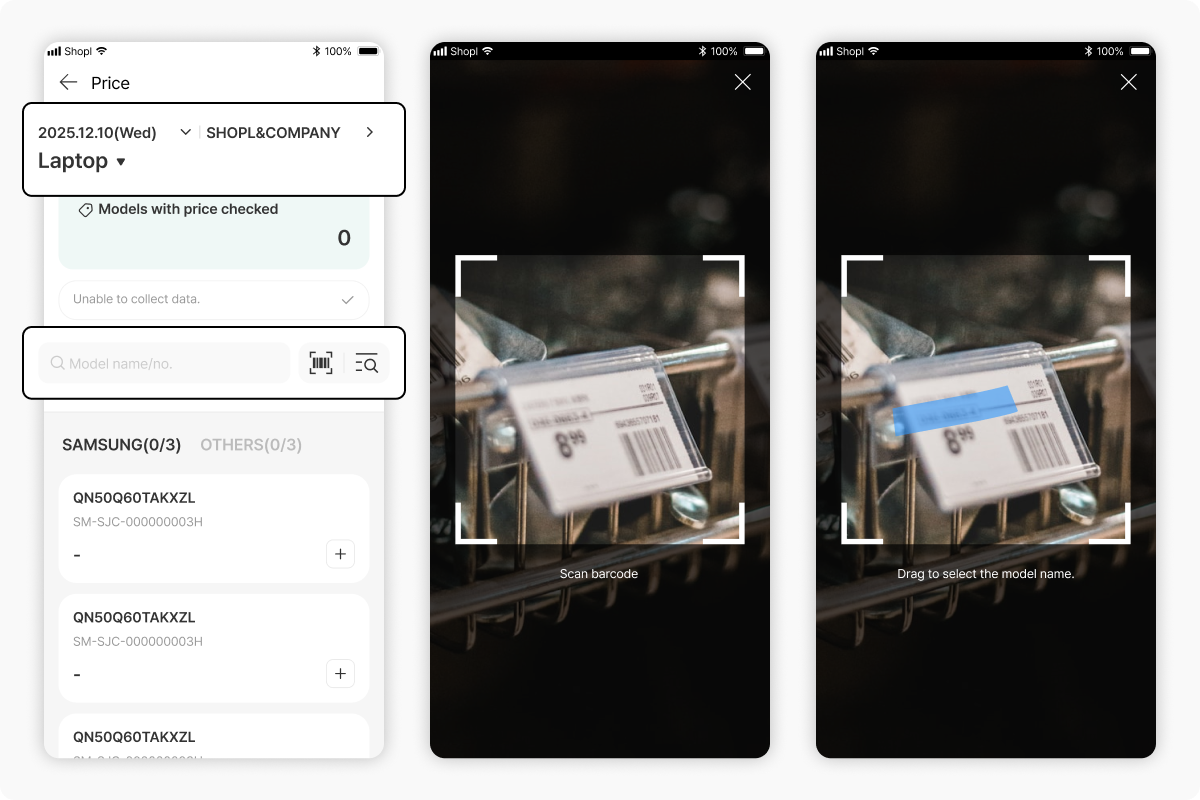
1. Menu or Today's Task > Price > Select the collection date and collection workplace at the top.
2. Select the Product category for which you want to Registered Price data.
❗Only Product categories for which the user has been Planned as an Employee who collected will be displayed. Please check with your Company Admin to confirm whether you have been Planned as an Employee who collected.
3. You can Search for a model using Model name/no. or scroll down to find the model directly.
.png)
4. Enter the collected Price for each Brand and model.
💡 After taking a photo of a price tag with the Camera, drag and select the desired Price area to have the Numbers automatically entered, allowing you to Enter Price data more accurately and with fewer mistakes.
.png)
.png)
1. Menu or Today's Task > Price > Select the collection date and collection workplace at the top.
2. Select the Product category of the Price data you want to Delete or Edit.
3. Activating 'Show only price-checked models' will Sort and display only models for which Price data has been uploaded.
4. Select the Brand > ~~tap the model name~~ select the model with the data you want to Delete or Edit.
5. To Edit > Modify the Price data, Memo, and Supporting photo, then tap Upload.
6. To Delete > Tap the 'Delete' button in the top right corner to permanently Delete the data.
In addition to data collected by employees, an Admin can also Add Price data directly.
1. Dashboard > Price > Click 'Add price data' in the top right corner.
.png)
2. Click the model name input field.
❗A model must be added to the List of models before Add price data is possible!
3. Model name > Select the Product category/Brand/model for which you want to Add Price data, then click the Apply button.
4. Enter all of the following: the date for Add price data / Store / Employee who collected / Price.
5. If there is additional Data beyond the Default Price, or if a Memo or Supporting photo attachment is needed, please Enter it.
6. Click the Save button.
When an Admin adds Price data directly, it can be added in bulk via an EXCEL Files.
1. Dashboard > Price > Click 'Add price data in bulk' in the top right corner.
2. Select the Product category to add Data to > Click Download sample.
3. Open the downloaded EXCEL Files and enter the Data for the selected Product category in bulk.
4. Dashboard > Add price data in bulk > Search > Attach the completed EXCEL Files with the entered Data.
5. After clicking Apply, review and Edit the information to be Registered on the Preview screen below.
6. Click directly on any Error lines highlighted in red to Edit them.
7. Select the final Data to Upload and click Save.