세콤, 캡스, KT텔레캅 연동으로 손쉽게 출퇴근 하세요!


1. Log in to the Shopl PC dashboard and go to [Menu] > [Chat].
2. Click the speech bubble Icon and select the Members you want to chat with to create a chat room.

3. Once the chat room is created, send a Message! The chat room will appear for the invited Recipients.
💡 Hover over a Message to reveal the more button, which lets you Copy, Reply, Edit, or Delete it. (Any Edit or Delete action is Reflected on the other party's screen in real time.)
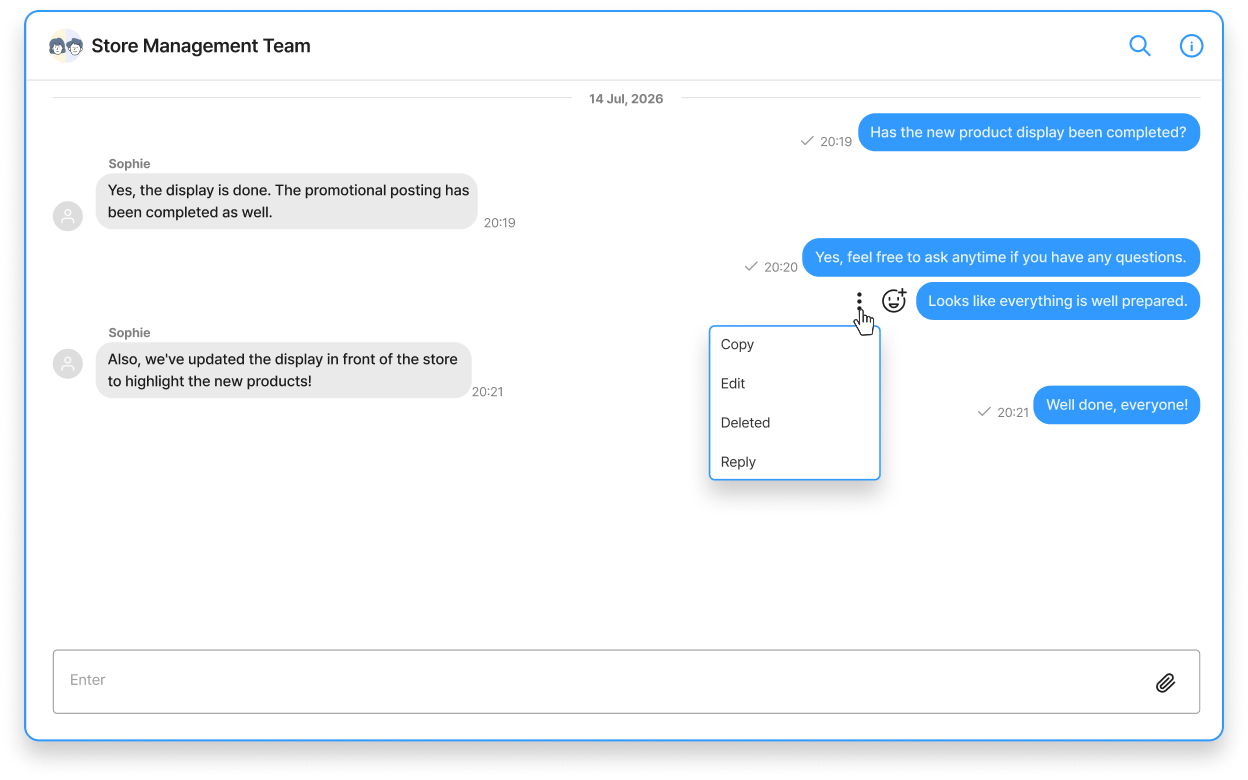
4. To attach Files or Images, click the file Icon on the right side of the Text box.
⚠️ Attention when leaving
If you leave the chat room, even if another member invites you back, the conversation history from before you left the chat room will be difficult to retrieve.
If you need to keep the conversation Contents, please save them manually via screenshot or similar methods. (Download is not available)
1. Open the Shopl app and click the speech bubble Icon in the top right corner of the screen.
2. On the screen that appears, tap the add Icon in the bottom right corner and select the Members you want to chat with.

3. Tap the Members Image in the top left corner to view Channel info, where you can also edit Notifications settings and the name of the chat room.
4. Once you have selected Members and created a chat room, send a Message. The chat room will appear for the invited Recipients.
💡 Long-press a Message to Copy, Reply, Edit, or Delete it. (Any Edit or Delete action is Reflected on the other party's screen in real time.)

5. To attach Files or Images, click the plus Icon on the left side of the Text box.
⚠️ Attention when leaving
If you leave the chat room, even if another member invites you back, the conversation history from before you left the chat room will be difficult to retrieve.
If you need to keep the conversation Contents, please save them manually via screenshot or similar methods. (Download is not available)
If you want to receive Chat Notifications through a web browser, please check both 1) Shopl Chat Notifications Settings and 2) your browser Notifications Settings.
1. Shopl Chat Notifications Settings

2. Browser Notifications Settings
By Default, the Chat page Language in Shopl's Chat feature is set to English.
If the conversation Contents appear differently on the dashboard and the app, please check whether Chrome's Auto Translate feature is set to English.