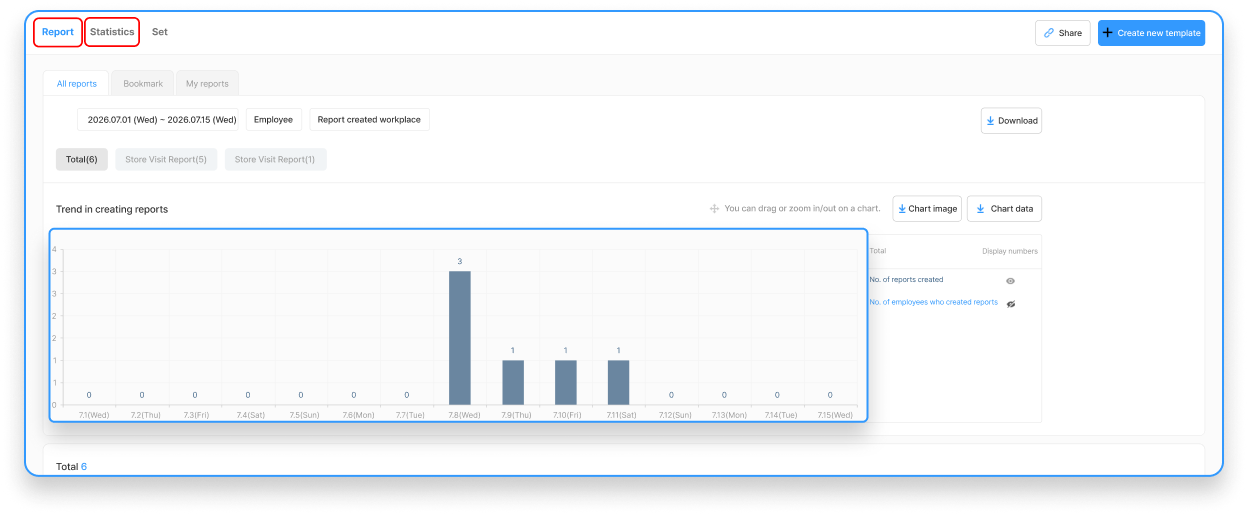
NOTE The Trend in creating reports can only be viewed on the PC dashboard.
Checking the Trend and Statistics of Shopl Reports
In Shopl, you can easily check the creation status and Statistics of Registered reports in two ways.
Method 1 (Quick Check): Report > Select the desired report > Report tab > Quick view of the Trend in creating reports chart
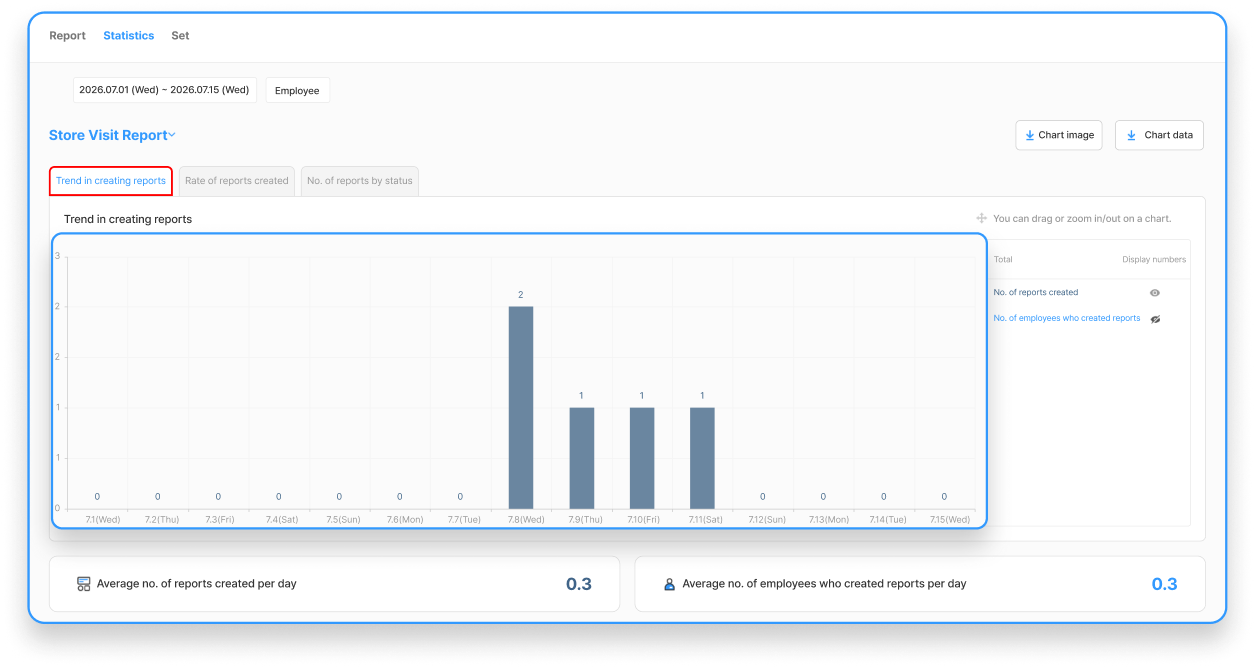
Method 2 (Detailed Analysis): Report > Select the desired report > Statistics tab > View detailed Statistics Data
💡 Want to see more detailed Data (Rate of reports created, figures by Status, etc.)?
Use the second method — the [Statistics] tab!
Understanding the Types of Statistics Data
Trend in creating reports
Shows at a glance how many reports were created and how many Employees Completed them during the selected Period.
Quick access to reports: Click the bar graph in the chart to go directly to the List of reports created on that Date.
Download data: Use the download button to Save the Chart image and the EXCEL Data used for Analysis.
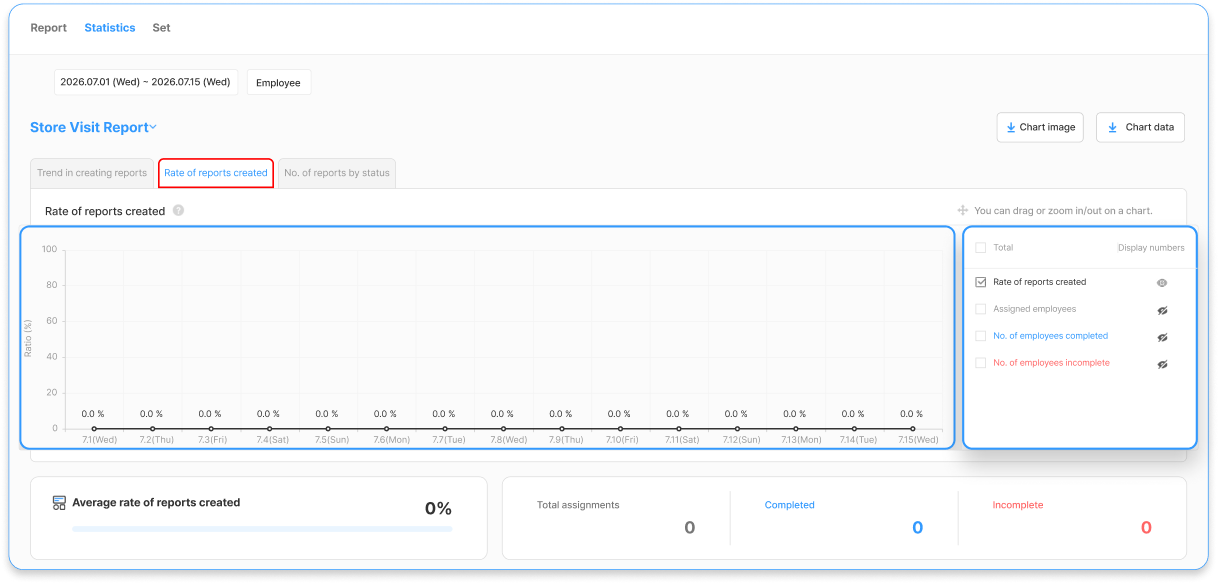
Rate of reports created
When a Required date to create is set in the Report template, it is assigned as a task to Employees. This shows the Ratio of Employees who actually Completed creating the report compared to the Total assignments.
Customized view: Use the Checklist on the right to filter and view only the Data you want as a chart.
Summary of figures: Intuitively provides the Avg. Rate of reports created for the selected Period, as well as the Completed/Incomplete figures compared to Total assignments.
Download data: Use the download button to download the Chart image and related EXCEL Data.
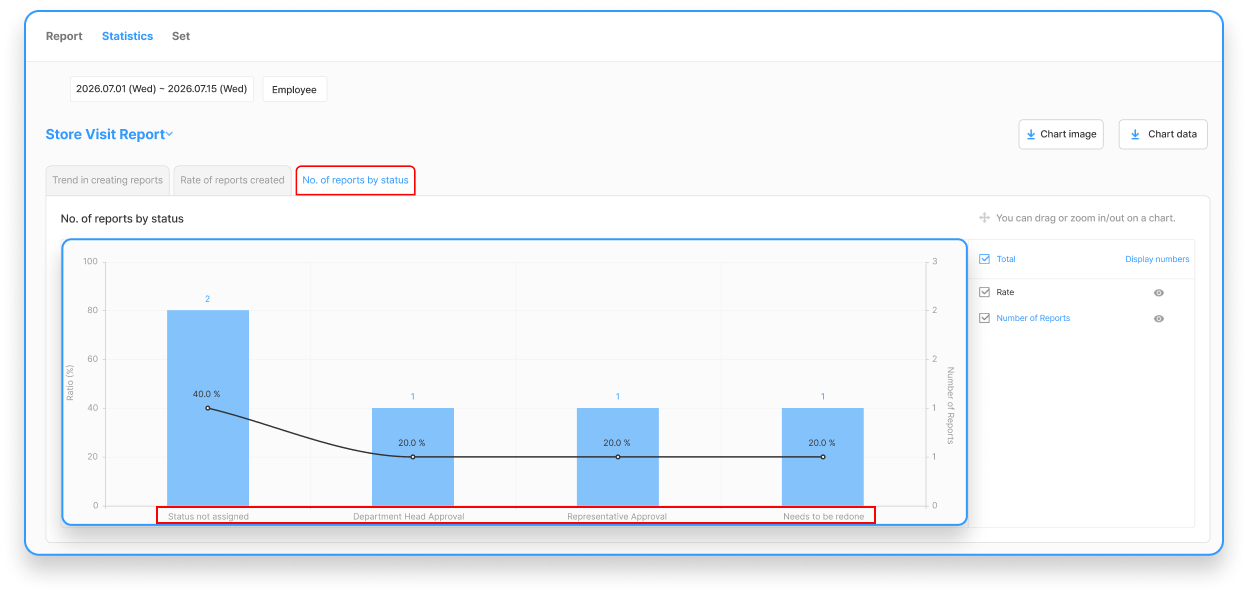
No. of reports by status
Shows the Ratio of the progress Status (e.g., pending approval, Completed, etc.) of reports created within the selected Period.
View by Status: Click on a specific Status in the chart to view only the reports with that Status collected together.
Customized view: Use the Checklist on the right to select and view only the Status values you want to check.
Download data: Use the download button to download the Chart image and EXCEL Data.