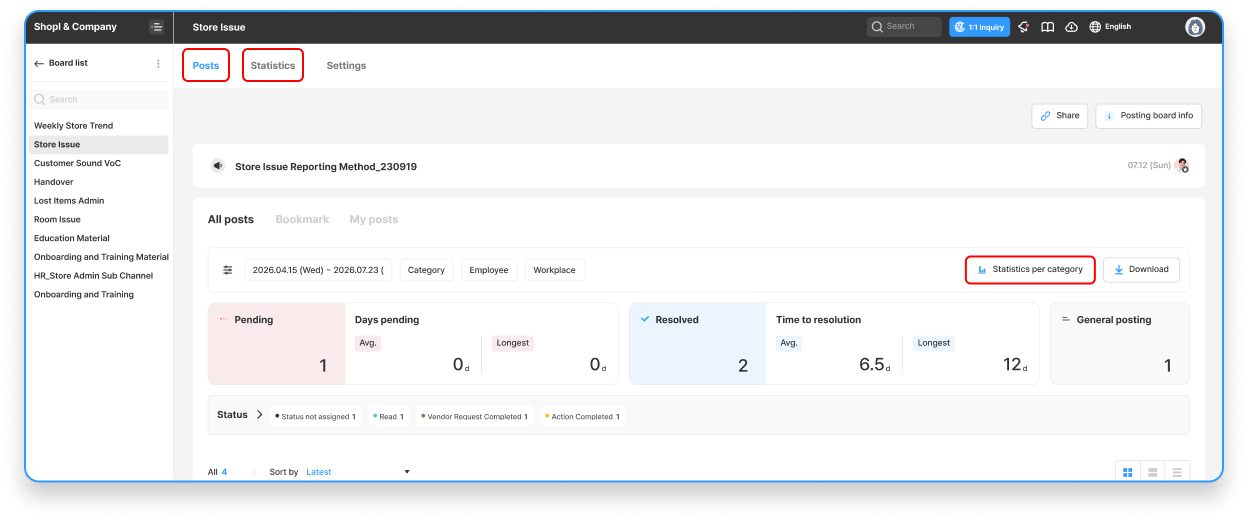
NOTE Statistics Information on Posts can only be viewed on the PC dashboard.
Checking Statistics of Posts Written in Shopl
In Shopl, you can easily check the writing status and Statistics of posts in two ways.
Method 1 (Quick check): Posting board > Select the desired Posting board > Posts tab > Quick check of Statistics per category
Method 2 (Detailed Analysis): Posting board > Select the desired Posting board > Statistics tab > Check detailed Statistics Data
💡 Want to see more detailed Data (writing rate, figures by Type, etc.)? Use the second method, the [Statistics] tab!
Checking Statistics per Category
You can quickly check the No. of posts for each category in a pop-up window.
Time taken to Resolve: If you are using the Issue & Resolve type, you can check the Time taken to resolve (e.g., the Time elapsed from Initial registration of a post to completion of Resolved processing).
Download data: You can Save the Statistics Data as an EXCEL Files using the download button in the pop-up window.
Checking Detailed Statistics Data
You can check detailed Statistics Data for All categories and each individual category. Data is provided differently depending on the Category type, as follows.
General type: Shows the Total no. of posts created.
Issue & Resolve type: Shows the Total no. of posts created, Current status of issue posts, No. of resolved posts, and the Accumulated no. of posts pending processing.
The Statistics screen that appears in your query commonly provides the following features.
Customized inquiry: You can view only the Data you want using the Filter and Sort by features (e.g., Job title, Distributor, total No. of posts, etc.).
Download data: You can download the Chart image and related EXCEL Data using the download button.