1. Go to Dashboard > Posting board to see the Board list of Posting boards you have access to, then select the Posting board you want.
2. Select the [Posts] tab.
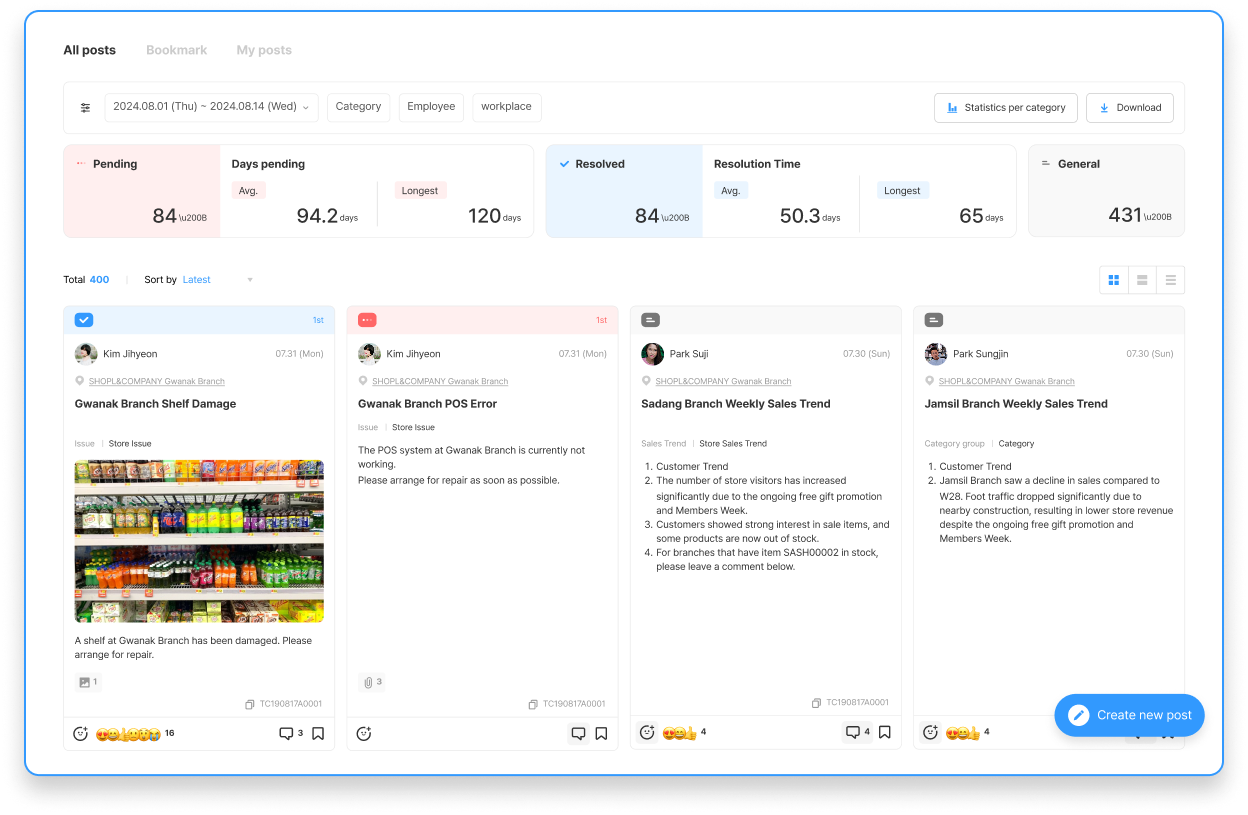
3. Posts created within the selected Period that you have permission to view will be displayed.
💡 Post Viewing Permission Guide
You can view a post if any of the following applies:
Admin and Operator: Admin or leader accounts with Operator permissions
Category Created by: Posts in a Category where you are designated as the 'Created by'
Category Fixed recipients: Posts in a Category where you are designated as a 'Fixed recipients'
List Summary
A Summary of posts viewed within the selected Period is provided.
Pending
The number of pending posts among the viewed posts, the Avg. unresolved period, and the Longest unresolved period among pending posts are provided.
The unresolved period refers to how many days have passed since a pending post was first submitted (Initial registration) in an Issue & Resolve type Category, expressed in day Unit.
Resolved
The number of Resolved posts among the viewed posts, the Avg. Time taken to resolve, and the Longest Time taken to resolve among Resolved posts are provided.
The Time taken to resolve refers to the number of days it took for a pending post to be marked as Resolved, expressed in day Unit.
💡 Pending and Resolved are shown only when there are posts of the Issue & Resolve type.
General posting
The number of General posting posts among the viewed posts is provided.
Status Summary
The number of posts with each Status registered in the Posting board is provided, grouped by Status.
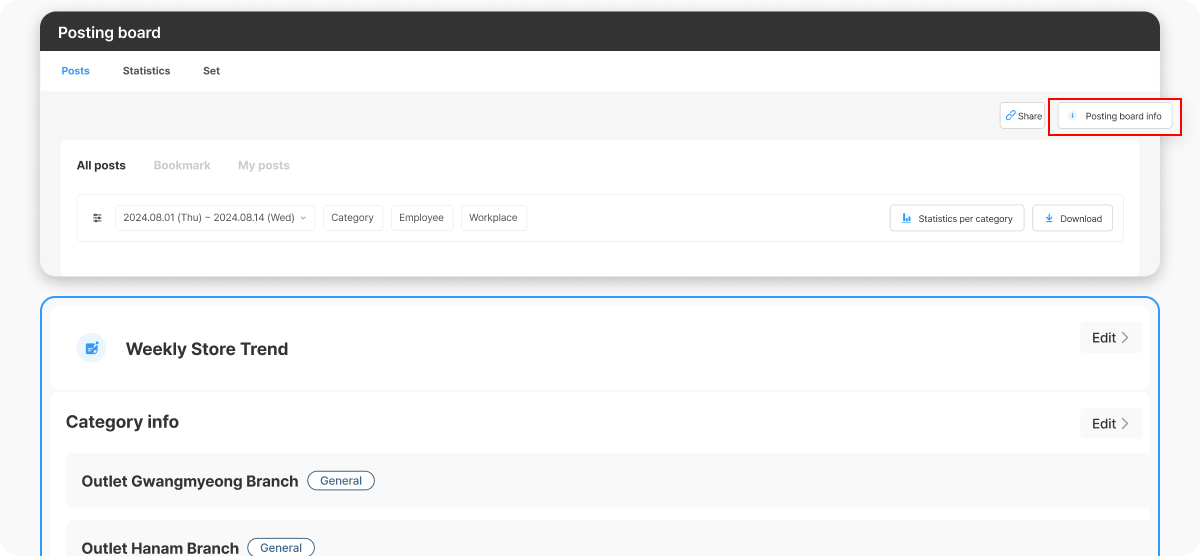
Main image and Posting board info
Main image: If a photo has been registered in Settings > Posting board info, it will be displayed at the top of the Posting board screen.
Posting board info: Select the button to view Information about the Posting board (Posting board Description, and the Created by and Fixed recipients for each Category).
Notice
Posts registered as a Notice are displayed here. Notices remain visible regardless of the selected viewing Period.
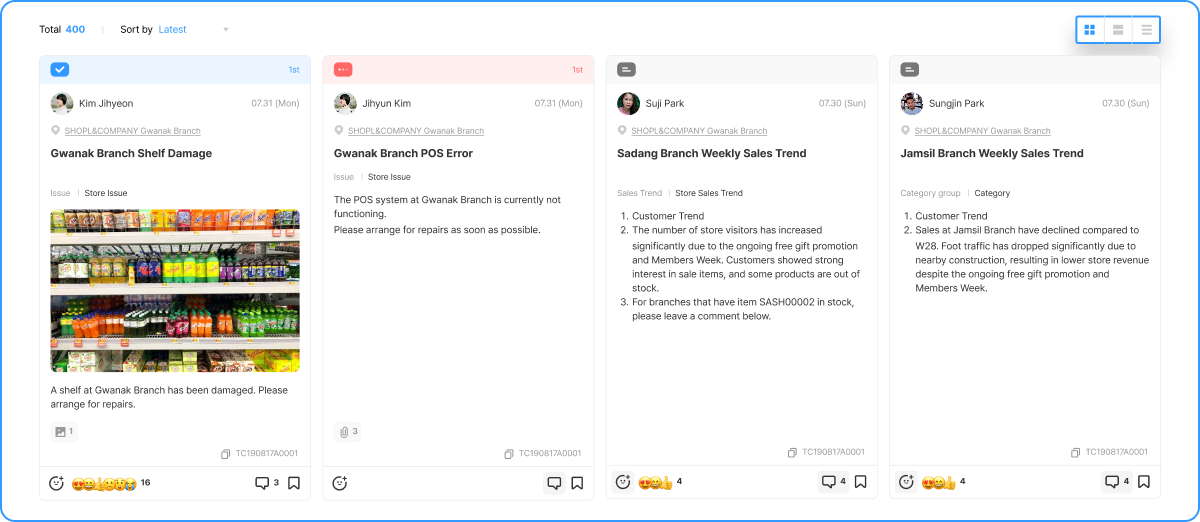
List of posts
Three post View modes are available: Feed View, Summary View, and List View.
You can change the Sort by order (Latest first, Oldest first) to display posts in your preferred order.
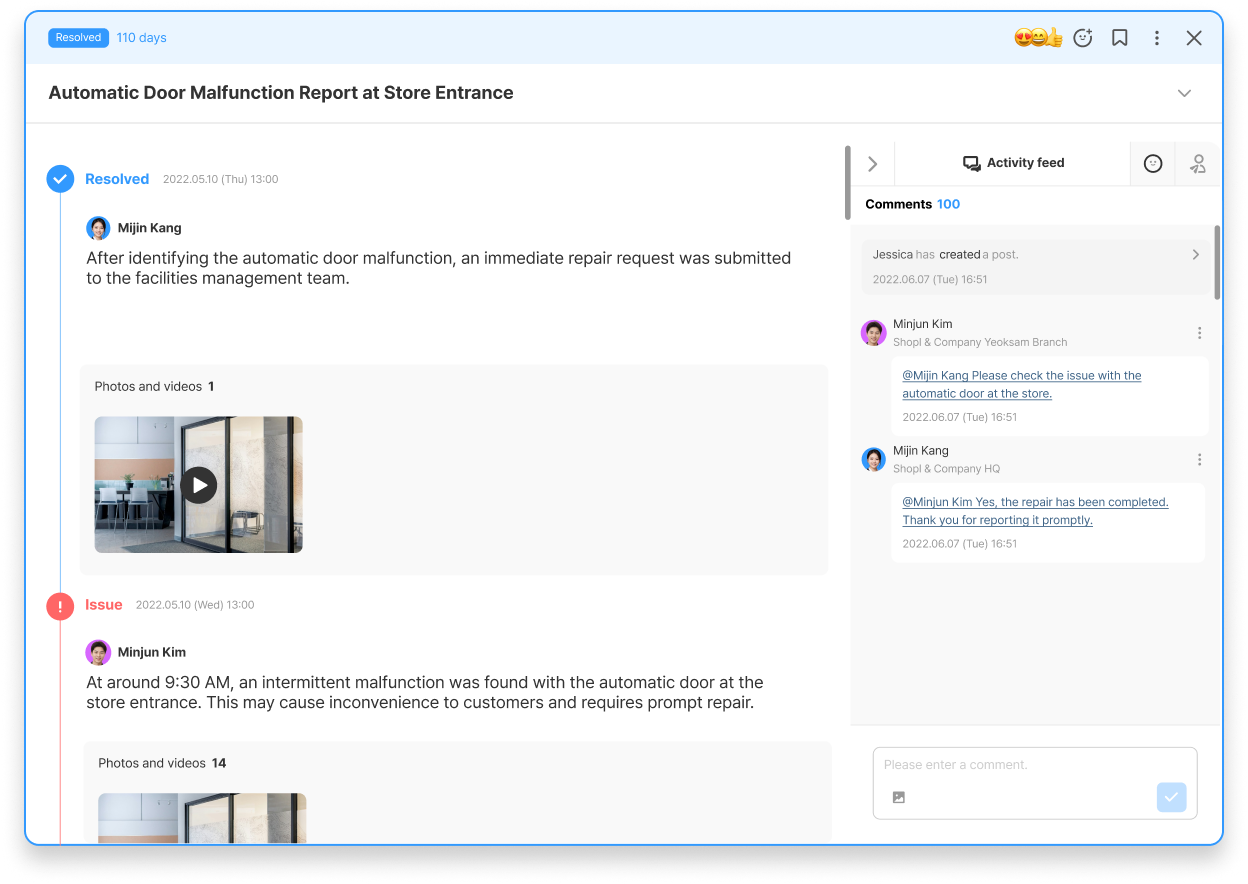
Post Details
1. On the [Posts] tab screen, select a specific post from the displayed posts.
2. You can view the selected post's detailed Contents, Status, Activity feed, Emoji, and more.
Detailed Contents
General posting: The Contents entered by the Created by are displayed without any special label.
Pending: The Contents entered by the Created by are displayed as 'Issue'.
Resolved: The Contents entered by the Created by are displayed as 'Issue', and the Action Contents entered are displayed as 'Resolved'.
Status
If one or more Statuses are registered in the Posting board, you can Apply the desired Status to a post.
If the selected Status has Notify when status is applied set to Use, a notification will be Sent through the designated Notify via channel.
In Settings, you can choose Push Notification, Email, or both as the notification channel.
Activity feed
History and a full list of Comments are provided, and you can Add Comments.
Emoji
You can express a quick reaction using emoticons, and you can view the Employee list of employees who reacted to the post with an emoticon.
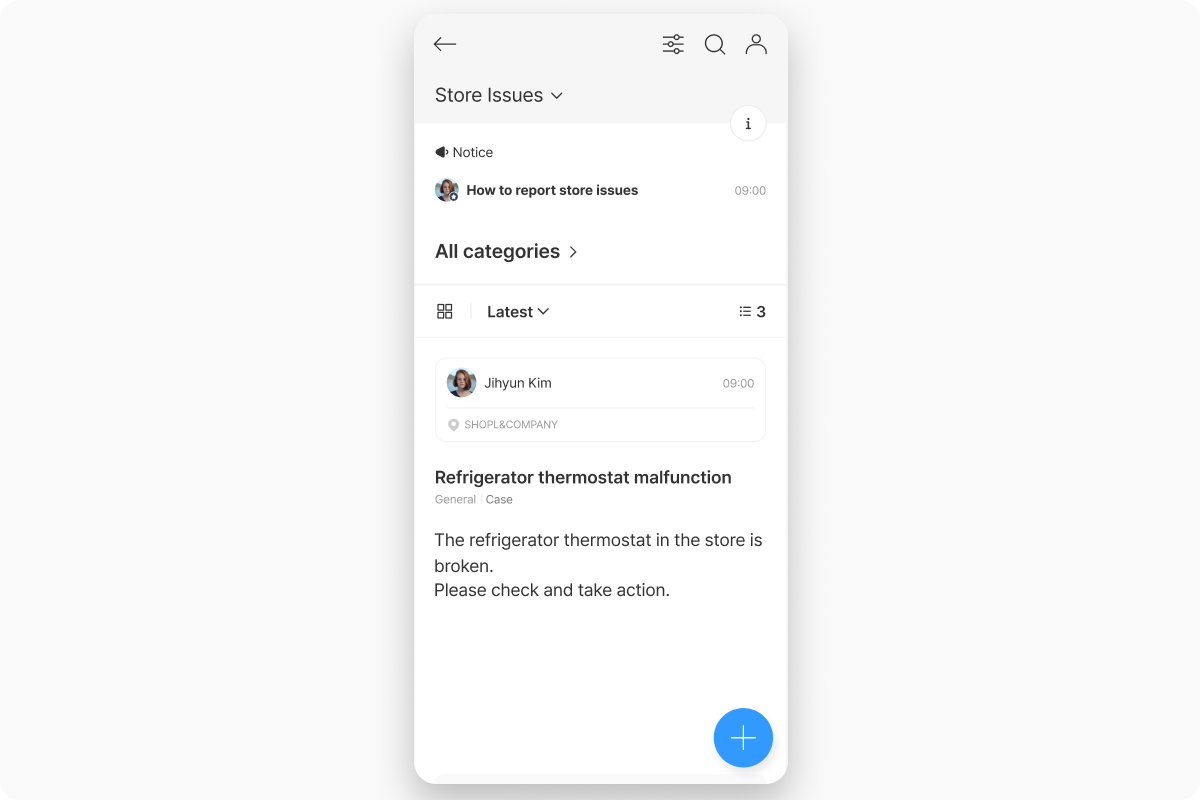
2. Viewing Posts in the App
1. On the home screen (Yes · Employee Mode), select the Menu button in the bottom-right corner.
2. In the navigation screen, select [Posting board].
3. Select the Posting board you want from the available Posting boards. If only one Posting board is available, you will be taken directly to that Posting board.
4. Posts created within the selected Period that you have permission to view will be displayed.
💡 In the app, only two View modes optimized for mobile — Feed View and List View — are available.
💡 Post Viewing Permission Guide
You can view a post if any of the following applies:
Admin and Operator: Admin or leader accounts with Operator permissions
Category Created by: Posts in a Category where you are designated as the 'Created by'
Category Fixed recipients: Posts in a Category where you are designated as a 'Fixed recipients'
Post Details
1. On the Posting board main screen, select a specific post from the displayed posts.
2. Just as on the Dashboard, you can view the selected post's detailed Contents, Status, Activity feed, Emoji, and more.


.png)
.png)