1. Resolve the issue from the Dashboard
1. Go to Dashboard > Posting board > select the desired posting board.
2. Go to [Posts] > select the post containing the issue you want to resolve.
3. In the post Details Information, select Resolve the issue.
- 📢 Any Members who have permission to view the issue post can resolve it. (For general Employees, please proceed from the APP.)
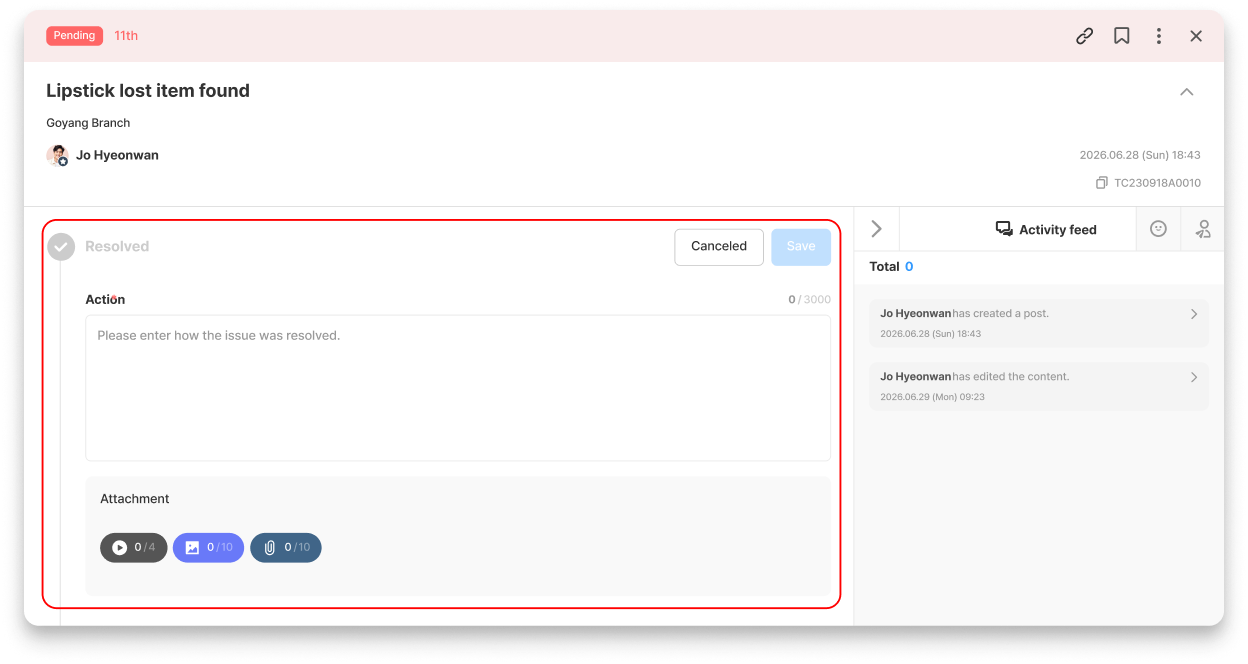
4. Write the Action details, then Save.
💡 Attachments limit Information
- Video: Max. 4 (mp4 files only, up to 300MB each)
- Image: Max. 10 (jpg, jpeg, png files Possible)
- Document: Max. 10 (pdf, ppt, xlsx, etc., up to 50MB each)
5. Once resolved, the post's Status will Change to [Resolved].
- On the Details page, you can check who resolved it and when.
- If you need to revert the Status, you can Change it back to [Pending] via [more(⋮)] at the top of the Details page.
2. Resolve the issue from the APP
1. From the bottom Menu on the home screen > select [Posting board].
2. Select the desired posting board. If there is only one posting board available to view, you will be taken directly to that posting board.
3. Select the post containing the issue you want to resolve, then select Resolve the issue in the post Details Information.
- 📢 Any Members who have permission to view the issue post can resolve it.
4. Write the Action details, then Save.
💡 Attachments limit Information
- Video: Max. 4 (mp4 files only, up to 300MB each)
- Image: Max. 10 (jpg, jpeg, png files Possible)
- Document: Max. 10 (pdf, ppt, xlsx, etc., up to 50MB each)
5. Once resolved, the post's Status will Change to [Resolved].
- On the Details page, you can check who resolved it and when.
- If you need to revert the Status, you can Change it back to [Pending] via [more(⋮)] at the top of the Details page.



.png)