샤플 이용료 80% 지원 받기
🤔 Managing reports across multiple stores gets messy fast. Regional managers need visibility into their locations, HQ wants the full picture, and store staff should only see what's relevant to their role — but without proper access controls, everyone ends up seeing everything, or you're stuck manually sharing files with each person.
Is there a way to control who sees which reports, based on their role and the stores they manage?
🙆 With Shopl, you can define exactly who has access to which reports — by role, job function, and store or organization scope. The right people see the right information, without any manual sorting or sharing on your end.
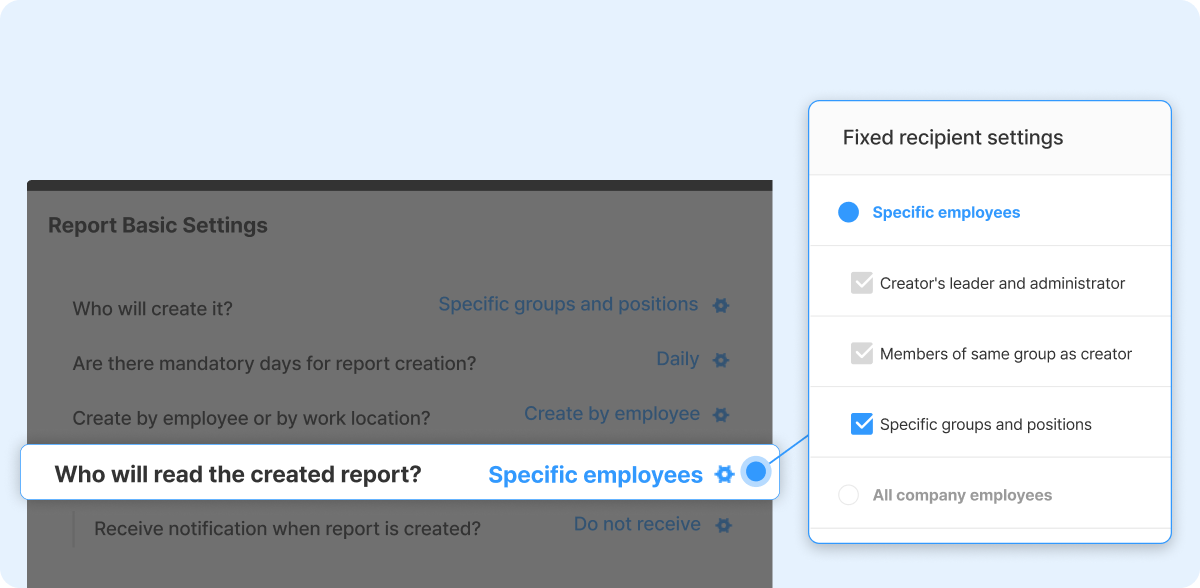
With Shopl, you can control which reports each role can view — so everyone only sees what's relevant to their job.
For example: store staff might only see task completion reports, store managers see operational reports for their location, regional managers see all reports across their assigned stores, and HQ admins have full visibility across the entire organization.
Defining access this way removes the noise. Each person opens Shopl and sees exactly the reports they need — nothing more, nothing less. No accidental exposure of sensitive data, and no time wasted scrolling through irrelevant information.
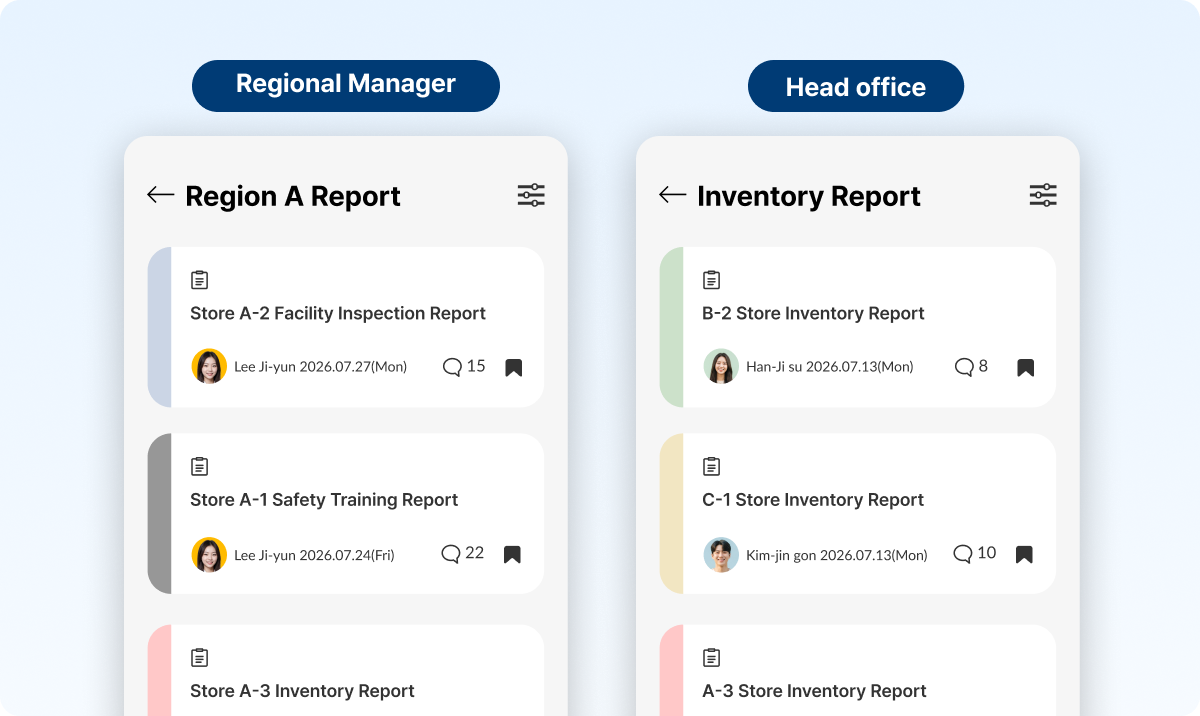
The more stores you manage, the more critical it becomes to make sure each person only sees their part of the picture.
In Shopl, you can set report access not just by role, but by store or organization scope as well.
For example:
This way, your reporting structure mirrors your actual org chart. As your store count grows, there's no need to manually compile or share reports with each person — access is automatic, based on the permissions you've already set.
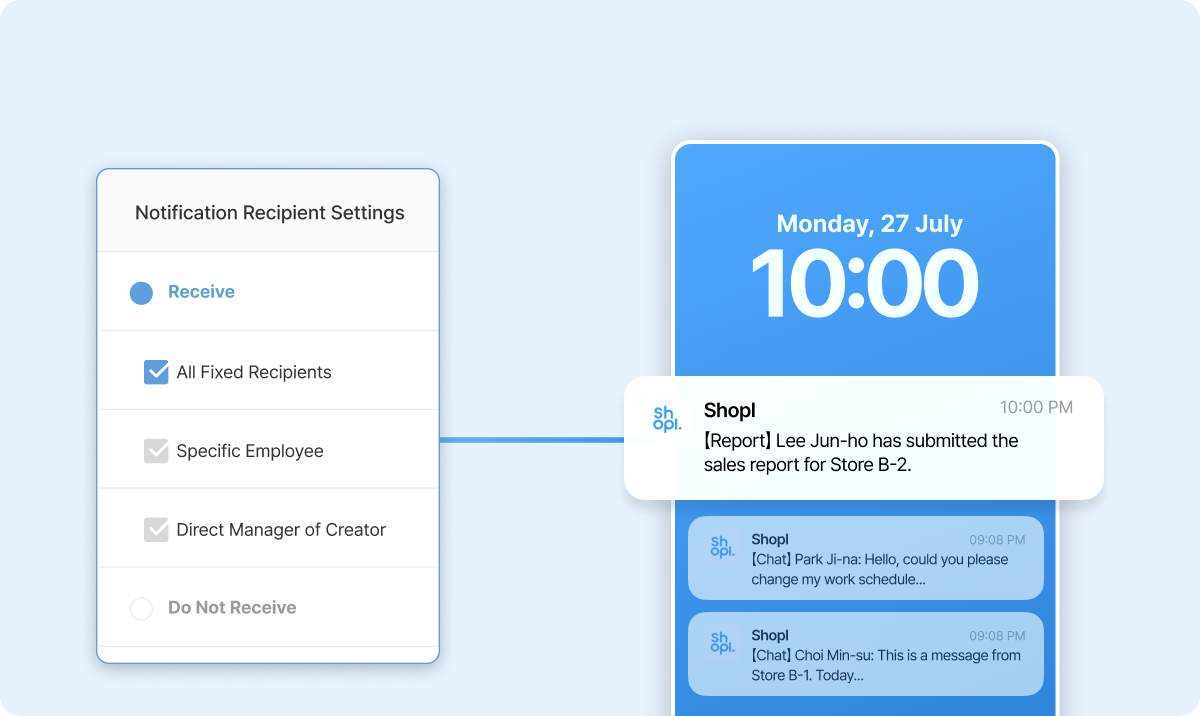
Beyond controlling who can view reports, you can also designate who gets notified the moment a report is completed.
Assigned recipients receive an automatic notification every time a report is submitted — no need to chase anyone or manually check whether something came in. Store managers get alerted as soon as staff submit their daily reports. Regional managers are notified the moment key operational reports are filed. Your reporting flow runs on its own, in line with your org structure.
A. Yes. In addition to role- and job-based access settings, you can assign separate access to specific members individually when needed.
A. No.
Changing permissions only adjusts who can view reports going forward — it does not affect any data that's already been submitted. All existing report records are safely retained and remain accessible to the relevant team members, so there's nothing to worry about.
A. Settings can be managed from the admin dashboard (web).
You can grant management access to the relevant team members within your organization, distributing admin responsibilities in line with how your operations are structured.
You now have a clear picture of how to use Shopl to control report access by role, job function, and organization — and build a reporting structure that reflects how your team actually works.
If you've been manually managing reports from multiple stores, it's time to stop. Set your permissions once in Shopl, and the right reports reach the right people automatically — no extra sharing, no information leaks.